How to Monitor Website Traffic and Know What Is Driving It

Last updated November 2026
Website traffic is the number of people and visits that reach your site, along with where they came from. If you want to know how to monitor website traffic, start by installing Google Analytics 4. It tracks visitors, sessions and traffic sources. Then verify your site in Google Search Console, which shows the search queries, clicks and impressions that bring people in.
According to Google Search Console Help, Search Console stores up to 16 months of search performance data. That means you can compare this month with the same month last year and see real trends instead of seasonal noise. For competitor sites, use a third-party website traffic checker such as Semrush, Ahrefs or Similarweb. Treat those numbers as modeled estimates, not exact counts.
This guide covers both sides: first-party data from your own site and third-party estimates for sites you don't own. It also shows how to track a newer source, visitors who arrive from AI answers like ChatGPT and Gemini.
How do you monitor website traffic?
You monitor website traffic by collecting traffic data, grouping it by source and reviewing it on a regular schedule. Monitoring matters because traffic is the top of every funnel. If visits drop, signups and sales usually follow a few weeks later. Catching the drop early gives you time to fix it.
Traffic also depends on many factors you can influence: search rankings, content quality, page speed, user experience, backlinks, social posts, email sends and paid campaigns. Some factors sit outside your control, like seasonality and Google's algorithm updates. Good traffic analysis separates the two.
First-party data: your own site
First-party data comes from tools you install on your own website. Google Analytics 4 records sessions, users and engagement. Search Console reports what happens in Google Search before the click. Because these tools read real visits, they are the most accurate source you have.
Third-party data: competitor estimates
Third-party data comes from tools that estimate traffic for any domain. According to Elementor, third-party traffic checkers estimate visits by modeling search volume, keyword rankings and clickstream data rather than reading a site's actual analytics. They are useful for comparing competitor website traffic, but they are directional, not precise.
| Data type | Example tools | Best for | Accuracy |
|---|---|---|---|
| First-party | Google Analytics 4, Search Console, Matomo | Your own site | Measured from real visits |
| Third-party | Semrush, Ahrefs, Similarweb, Ubersuggest | Competitor research | Modeled estimates |
What you'll need before you start
You don't need paid software to begin. The core tools to track your own site are free. Gather the items below before you start so the setup takes one sitting.
Access to your site or CMS (WordPress, Ghost or similar)
You need admin access to add a tracking tag to every page. On WordPress, a plugin such as Google's Site Kit handles this. On Ghost, you paste the tag into Code Injection. On other platforms, look for a header scripts field or a built-in Google Analytics setting.
A Google account for Analytics and Search Console
Use one Google account that your team can keep long term. Avoid a personal account that belongs to a contractor. You can add other users later, but the owner account controls property settings and data retention.
Optional: a third-party traffic checker for competitors
If you want to check website traffic for competitors, pick one checker and stick with it. Semrush, Ahrefs, Similarweb and Ubersuggest all offer limited free lookups. Keyword idea tools like AnswerThePublic help with content planning, but they don't estimate visits.
Time estimate: about 60 minutes to set up, 15 minutes a week to review
Plan about 60 minutes for the initial setup of all eight steps. After that, a 15-minute weekly review is enough for most small and mid-sized sites. Search Console verification by DNS can take longer to confirm, so start that step early.
How to monitor website traffic, step by step
Follow these steps in order. Each one builds on the last, and together they give you a full picture of your website traffic analysis, from search impressions to conversions.
Step 1: Install Google Analytics 4 on your site
Action: In Google Analytics, open Admin, create a property, then add a Web data stream for your domain. Copy the Measurement ID that starts with "G-" and add it through Site Kit, Ghost Code Injection or Google Tag Manager.
Why it matters: GA4 is the web analytics base layer. It records sessions, users, engagement and conversions. While you're in Admin, open Data settings and check data retention. According to Google Analytics Help, standard GA4 properties keep user-level event data for either 2 or 14 months, depending on this setting. Choose 14 months.
Screenshot note: the GA4 Admin screen showing Data streams, with the Measurement ID visible in the stream details panel.
Step 2: Verify your site in Google Search Console
Action: Open Search Console and add a property. A Domain property covers every subdomain and protocol, and you verify it with a DNS TXT record. A URL prefix property is faster and can verify through your GA4 tag.
Why it matters: Search Console shows organic traffic before it reaches your site: queries, impressions, clicks, click-through rate and average position. Google also counts clicks from AI Overviews and AI Mode inside these web search reports. It's the clearest window into your SEO performance.
Screenshot note: the Search Console Performance tab with Clicks, Impressions, CTR and Position toggled on.
Step 3: Link Search Console to Google Analytics
Action: In GA4, go to Admin, then Product links, then Search Console links. Choose your verified property and your web stream. Then open Reports, Library, and publish the Search Console collection so it appears in your menu.
Why it matters: Linking puts search queries next to on-site behavior. You can see which landing pages win clicks and whether those visitors engage or leave. Neither tool shows that full picture alone.
Screenshot note: the GA4 Product links page with a confirmed Search Console link.
Step 4: Pick the traffic metrics that match your goals
Action: Choose a few traffic metrics to watch every week. Don't track everything. Match the metrics to your goal, whether that's leads, sales or readership.
- Sessions: a session is one visit. One person can create many sessions over a week.
- Total users vs. unique visitors: total visits count every session, while unique visitors (users in GA4) count distinct people or devices.
- Engagement rate: the share of sessions that lasted a while, viewed more than one page or converted. It replaced bounce rate as the headline metric in GA4.
- Conversions (key events): signups, purchases or form fills.
Why it matters: Traffic and engagement answer different questions. Traffic tells you how many people arrived. Engagement tells you whether the content held them. A page can gain visitors while engagement falls, which often signals a mismatch between the search query and the page.
Step 5: Break down your traffic sources
Action: In GA4, open Reports, Acquisition, then Traffic acquisition. Set the primary dimension to Session default channel group. This is your core Google Analytics traffic report.
| Source | What it means |
|---|---|
| Organic search | Unpaid clicks from Google, Bing and other search engines |
| Direct | Typed URLs, bookmarks and visits with no referrer data |
| Referral traffic | Clicks from links on other websites, including some AI assistants |
| Paid | Search and display ads, such as Google Ads |
| Social | Facebook, Twitter, LinkedIn and Instagram Ads or posts |
| Newsletters and campaigns tagged with UTM parameters |
Why it matters: Each channel needs a different fix. Falling organic traffic points to rankings or content. Falling referral traffic points to lost links. Tag every email and social link with UTM parameters, or GA4 may dump those visits into direct.
Screenshot note: the GA4 Acquisition report, Traffic acquisition view, sorted by sessions.
Step 6: Build a weekly dashboard and set alerts
Action: Build a simple dashboard in Looker Studio, which is free and connects to both GA4 and Search Console. Include sessions by channel, engagement rate, conversions and Search Console clicks. Then create custom insights in GA4 to alert you when sessions or conversions change sharply.
Why it matters: A dashboard turns scattered reports into one view you can scan in minutes. Alerts catch problems between reviews, like a broken tag after a site update. Compare each week with the same week last year, not just last week.
Screenshot note: a Looker Studio dashboard with a sessions-by-channel chart and a Search Console clicks scorecard.
Step 7: Estimate competitor website traffic with a traffic checker
Action: Enter a competitor's domain into a traffic checker. Look at estimated monthly visits, top pages, top keywords and traffic sources. Some tools also show authority scores, such as Moz's Domain Authority or Ahrefs' Domain Rating.
Why it matters: Competitor research shows which topics bring them search traffic and which keywords you're missing. Focus on patterns, such as which pages rank, rather than the exact visit count. Use the same tool for every competitor so the estimates stay comparable.
Screenshot note: a traffic checker domain overview showing estimated organic traffic and top pages.
Step 8: Track how often AI answers cite and send visitors to your site
Action: In GA4, open an Exploration or build a custom channel group. Filter session source with a regex that matches AI domains, such as chatgpt.com, gemini.google.com, perplexity.ai and copilot.microsoft.com. Save it as an "AI assistants" channel.
Why it matters: More people now ask ChatGPT and Gemini before they search. Those visits usually land in referral traffic, and some show up as direct when the app strips referrer data. Citations without clicks don't appear in analytics at all, so you also need a tool that checks AI answers directly.
Screenshot note: a GA4 Exploration filtered to AI assistant sources, with sessions by landing page.
Common mistakes and troubleshooting
Most traffic data problems come from setup errors, not real changes in visitor behavior. Check these issues first whenever your numbers look strange. Following these best practices saves you from chasing false alarms.
Tracking code installed twice, so sessions double
If a plugin and a theme both add the GA4 tag, every pageview fires twice. Your sessions inflate and engagement looks odd. Use Tag Assistant or GA4 DebugView to confirm only one tag fires per page, then remove the duplicate.
Not filtering out your own internal traffic
Your team visits the site constantly, which skews small sites the most. In GA4, define internal traffic by IP address in your data stream's tag settings. Then activate the internal traffic data filter in Admin so those visits stop counting.
Expecting competitor estimates to match real analytics
Competitor numbers come from models, so they can run high or low. Test your checker by looking up your own domain and comparing it with GA4. That gap tells you how much to trust its estimates for similar sites in your niche.
Reading a traffic drop without checking seasonality or tracking changes
Before you react to a drop, compare year over year in Search Console. Then check for recent tag changes, site migrations, consent updates or Google algorithm updates. Many "drops" are holidays, broken tracking or a single page losing its top ranking.
Losing data to cookie consent banners
When visitors decline cookies, GA4 may not record their visits. Turn on Consent Mode so Google can model some of that missing behavior. Search Console isn't affected by consent banners, so use its click data as a cross-check.
Missing AI chatbot referrals hidden inside direct or referral traffic
AI visits blend into broad channels unless you separate them. Build the AI assistants channel from Step 8 and review it monthly. A rise in direct traffic to deep content pages can also hint at AI apps that strip the referrer.
When to use Zivooo to track rankings and AI visibility
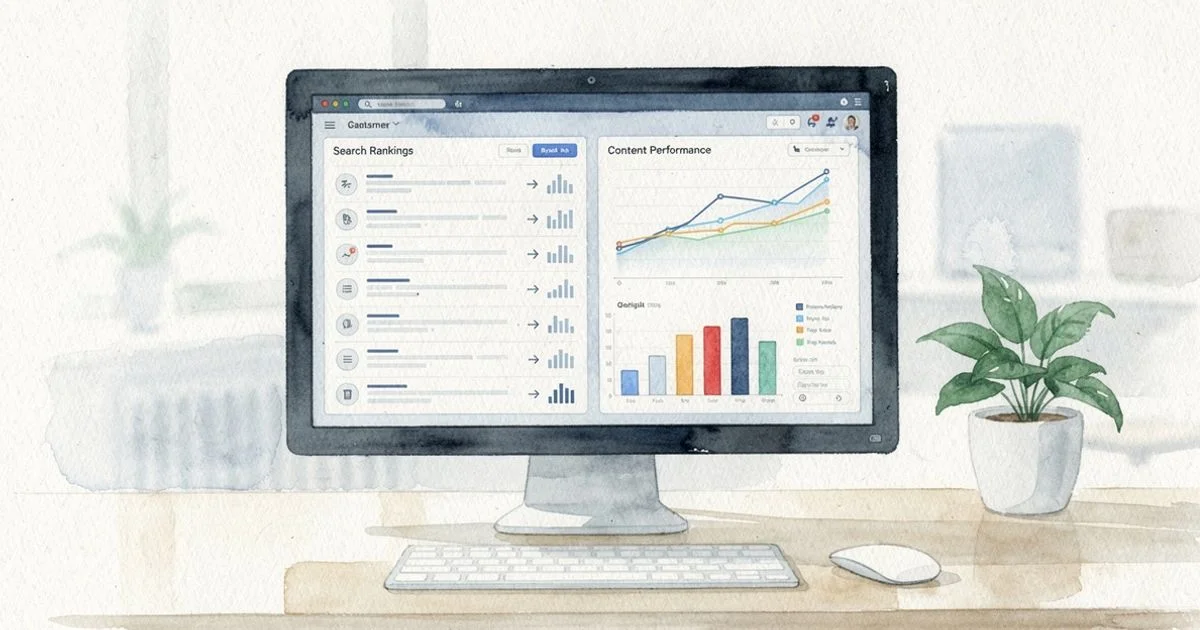
GA4 and Search Console tell you what happened. They don't tell you what to fix, and they can't see AI answers that cite you without a click. That's where a dedicated SEO and AI visibility tool helps.
Connect Google Search Console and see rankings next to your content
Zivooo connects to Search Console and runs daily Google rank tracking. You see each page's rankings, clicks and impressions next to the content itself, so you don't have to cross-reference spreadsheets.
Track whether ChatGPT, Google AI Overviews, AI Mode and Gemini cite you
Zivooo checks your target prompts in ChatGPT, Google AI Overviews, Google AI Mode and Gemini. It shows whether your brand gets cited, and Brand Truth flags what AI engines get wrong about you.
Turn traffic drops into a ranked list of fixes and content refreshes
When a page loses clicks, the live optimization editor scores it against ranking pages on 40+ SEO, GEO and AEO factors. You get a clear list of what to update, then publish to WordPress or Ghost.
FAQs
How do you find traffic statistics for a website?
For your own site, open Google Analytics 4 and go to Reports, then Acquisition. You'll see users, sessions and traffic sources. For a site you don't own, enter the domain into a free website traffic checker like Semrush, Ahrefs or Similarweb. You'll get an estimate of monthly visits and top traffic sources.
Is website traffic a KPI?
Website traffic can be a KPI, but it works best paired with an outcome metric such as signups, leads or revenue. Traffic tells you how many people arrive. Conversions tell you whether the right people arrived. Track both together in your KPIs and metrics review.
What are the top 3 website performance metrics to monitor?
Start with sessions by traffic source, engagement rate and conversions. Engagement rate replaced bounce rate as the GA4 headline metric. Together, these metrics show how many people visit, whether they stick around and whether they take the action you care about.
What is a good amount of website traffic?
There is no universal number, because a good amount depends on your niche, price point and conversion rate. A B2B SaaS site with 2,000 well-targeted monthly visits can outperform a blog with 50,000 casual readers. Measure against your own past months and your direct competitors.
Can you check website traffic for free?
Yes. Google Analytics 4 and Google Search Console are both free for your own site, and Matomo has a free self-hosted version. Most competitor traffic checkers, including Ubersuggest, offer a limited free lookup before asking you to pay.
How accurate are website traffic checkers for competitor sites?
They are useful for direction, not precision. Checkers model traffic from keyword rankings, search volume and clickstream panels, so they can miss direct, email and referral visits. Use them to compare competitors against each other with the same tool, not to report exact figures.
Next steps
Now you know how to monitor website traffic from both angles. The setup is done once, but the value comes from a steady review habit.
Set a 15-minute weekly review on your calendar
Block 15 minutes on the same day each week. Scan your dashboard, check alerts, compare with last year and note one action. A short, consistent review beats a long monthly deep dive you keep skipping.
Refresh pages that lose clicks two months in a row
In Search Console, compare the last three months by page. If a page loses clicks two months running, refresh it. Update facts, answer new questions and tighten the intro so it matches what searchers want.
Start tracking AI visibility alongside Google rankings
Search is no longer the only door. Track your Google rankings and your citations in AI answers side by side. That way you see where you get cited, where you don't and which content to improve next.
If you want to see rankings, AI citations and page fixes in one place instead of stitching reports together, Zivooo gives you daily Google rank tracking, Search Console insights, AI visibility tracking in ChatGPT, AI Overviews, AI Mode and Gemini, a live optimization editor and publishing to WordPress and Ghost. It is a practical option for marketers and founders who want to turn traffic data into clear content updates.
WRITTEN BY

Muntasir Rashid
Hello 👋 I’m Muntasir, founder of Zivooo and a content marketer with 20+ years of hands-on experience in marketing, growth, and building businesses.
I’ve spent the last two decades marketing my own ventures and helping clients grow through content, SEO, and digital marketing. Along the way, I’ve learned that the best strategies rarely come from theory, they come from testing, experimenting, failing, and figuring out what actually works.
Content marketing and growth are my forte. Here, I share practical insights, experiments, and lessons from the trenches covering SEO, GEO, AEO, AI search, and growth strategies for modern tech companies.
Keep learning, keep growing
We have more articles on similar topics to help grow your business.

How to Check Web Traffic of a Website: Yours or Any Competitor's
How to check web traffic of a website: use Google Analytics 4 and Search Console for your own site, or a third-party tool to estimate any competitor's traffic.


DR Checker: What Your Domain Rating Score Really Means
A DR checker reveals your Domain Rating, a 0-100 score measuring backlink profile strength. Learn what the score means, how it is calculated, and how to use it.