How to Check Web Traffic of a Website: Yours or Any Competitor's

Last updated November 2026
Website traffic is the number of people and visits a site receives, plus where those visits come from. If you want to know how to check web traffic of a website, the method depends on ownership. For a site you own, install Google Analytics 4 to see visitors, sessions, and sources. Then verify it in Google Search Console to see Google clicks and queries.
For a site you don't own, enter the domain into a third-party website traffic checker such as Similarweb, Ahrefs, or Semrush, and treat the number as an estimate. Use first-party tools for decisions about your own site. Use third-party traffic data to benchmark competitors and spot trends.
How do you check the web traffic of a website?
You check website traffic with two kinds of tools. First-party analytics tools sit on your own site and count real visits. Third-party tools estimate visits to any domain from outside signals. Both are useful, but they answer different questions, and mixing them up leads to bad decisions.
What is website traffic, and why does it matter?
Website traffic covers every visit to your pages, from a quick bounce to a long research session. It matters because traffic is the top of every funnel. More qualified visitors usually means more leads, sales, and signups. Traffic analysis also tells you which channels work, so you can spend time and budget where it pays off.
How is website traffic measured?
Most tools measure traffic with a small tracking script or tag. When a page loads over HTTP, the script records events like page views and clicks, then groups them into sessions. Search engines measure differently. Search Console counts clicks and impressions on Google's results pages, not what happens after the click.
Here are the core traffic metrics and what each one means:
- Users: the people (really, browsers or devices) that visited. Unique visitors is the older name for the same idea.
- Sessions: a group of actions one user takes in a single visit. One user can have many sessions.
- Pageviews: every time a page loads. One session can include many pageviews.
- New vs returning visitors: first-time users compared with people who came back.
- Engagement data: engaged sessions, engagement rate, and average engagement time.
Total visitors counts every visit, so the same person can be counted several times. Unique visitors counts each person once in a date range. If total visits climb while unique visitors stay flat, your existing audience is coming back more often. If unique visitors climb, you are reaching new people.
What are the main traffic sources?
Analytics tools sort traffic sources into channels. Knowing them helps you read any report:
- Organic traffic: visits from unpaid search results on Google, Bing, and other engines. This is where SEO shows up.
- Direct: typed URLs, bookmarks, and visits with no known source.
- Referral traffic: clicks from links on other websites, including AI answer engines.
- Social: visits from LinkedIn, X, Facebook, Reddit, and similar platforms.
- Paid: visits from ads, such as Google Ads or Microsoft Advertising campaigns.
- Email: clicks from newsletters and campaigns, tracked with UTM tags.
Your own site vs a competitor's site: which method applies
If you own the site, use first-party data. Google Analytics and Search Console record actual visits and clicks, so you can report on them with confidence. If you want to check competitor website traffic, you cannot install anything on their site. You rely on a traffic checker that models visits from outside data.
| Question | Your own site | A competitor website |
|---|---|---|
| Data type | First-party, measured | Third-party, estimated |
| Main tools | Google Analytics 4, Search Console | Similarweb, Ahrefs, Semrush |
| Best use | Reporting, decisions, SEO fixes | Benchmarking, trends, relative size |
| Cost | Free | Free basic data, paid full data |
What you'll need before you start
Gather a few things first. Setup goes faster when access and accounts are ready before you open any dashboard.
Access: admin rights to your site or CMS
You need permission to add a tracking tag or edit DNS records. That usually means admin access to WordPress, Shopify, Webflow, or your hosting panel. If a developer manages the site, ask them to add the tag or give you access to Google Tag Manager.
Free tools: Google Analytics 4 and Google Search Console
Both tools are free with a Google account. According to Google Analytics Help, Universal Analytics stopped processing data on July 1, 2023, so Google Analytics 4 is now the default first-party analytics tool from Google. Search Console complements it with search data that GA4 does not show, such as queries and average position.
A third-party traffic checker for competitor estimates
Pick one checker for competitor research and stick with it, so your comparisons stay consistent. Most offer free basic data, like a monthly visit estimate and top countries. Paid plans unlock full data, including backlink data, keyword ranking history, and channel breakdowns.
Time estimate: about 30 minutes to set up, 5 minutes to check
Plan about 30 minutes to create accounts, add the GA4 tag, and verify Search Console. After that, checking website traffic takes around five minutes. Data starts appearing after setup, but neither tool fills in history from before you installed it.
How to check website traffic, step by step
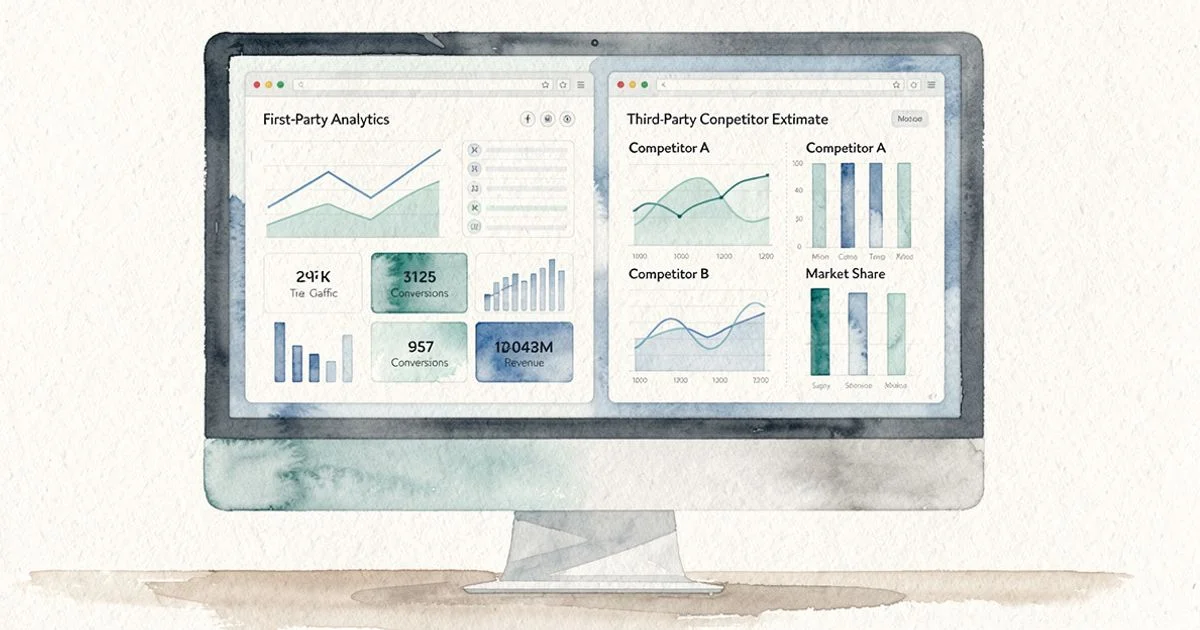
Follow these steps in order. Steps 2 through 5 cover your own site. Step 6 covers competitors, and step 7 ties everything together.
1. Decide whether you need exact data or an estimate
Start with the question you want answered. "How many people visited my pricing page last month?" needs exact first-party data. "Is this competitor bigger than us?" only needs an estimate. Writing the question down keeps you from reporting a third-party guess as a fact.
2. Install Google Analytics 4 on your site
Go to analytics.google.com, click Admin, then Create, then Property. Name the property, set your time zone and currency, and add a Web data stream with your URL. Google gives you a Measurement ID that starts with "G-". Add it through your CMS integration, a plugin, or Google Tag Manager.
Screenshot note: Admin > Data streams > Web shows your Measurement ID. To confirm the tag works, open your site in another tab and check Reports > Realtime. If you see yourself as an active user, tracking is live.
3. Read the Traffic acquisition report in GA4
Open Reports, then Acquisition, then Traffic acquisition. This report lists sessions by channel: organic search, direct, referral, organic social, paid search, and email. It is the fastest way to see your website traffic sources and how engaged each channel's visitors are.
Screenshot note: GA4 Reports > Acquisition > Traffic acquisition. Change the primary dimension to "Session source / medium" for detail, such as google / organic or newsletter / email. Use the date picker to compare this month against last month.
For deeper website traffic analysis, open Engagement > Pages and screens. This shows which pages earn the most views. Then check User attributes or the user acquisition report to compare new vs returning visitors.
4. Verify your site in Google Search Console and open the Performance report
Go to search.google.com/search-console and add a property. The Domain option covers every subdomain and protocol, and you verify it with a DNS record. The URL prefix option is simpler and can verify through your existing GA4 tag.
Once verified, open Performance > Search results. You will see clicks, impressions, average CTR, and average position, plus the queries and pages behind them. According to Google Search Console Help, the Performance report stores up to 16 months of search traffic data, which makes year-over-year comparison possible.
Screenshot note: Search Console > Performance > Search results, with all four metric boxes turned on. Sort queries by impressions to find terms where you rank but rarely get clicked.
5. Check your CMS or hosting dashboard for a quick view
Many platforms show traffic without extra setup. WordPress.com, Shopify, Wix, and Squarespace all include basic visitor stats. If your DNS runs through Cloudflare, Cloudflare Web Analytics offers a privacy-focused view. Microsoft Clarity adds heatmaps and session recordings for free.
Treat these dashboards as a quick pulse check. Each tool counts visits a little differently, so their numbers will not match GA4 exactly. Pick GA4 as your source of truth and use the others for context.
6. Estimate a competitor's traffic with a website traffic checker
Open your chosen traffic checker and type the competitor's domain. Most tools show an overview first: estimated monthly visits, traffic trend, top countries, and the channel mix. Ahrefs and Semrush lean on keyword ranking data to estimate organic traffic. Similarweb blends clickstream panels, crawling, ISP data, and other partner signals.
Look past the headline number. Check which pages and keywords drive their organic traffic, which sites send referral traffic, and how the trend has moved over time. A steady climb matters more than any single month's total.
Screenshot note: in most checkers, the domain overview is the first screen. Then open the top pages report to see which URLs earn the most estimated visits.
7. Cross-check sources and spot AI answer referrals
Compare GA4 organic sessions with Search Console clicks for the same dates. They will differ, but they should move in the same direction. A big split in trend direction usually points to a tracking problem.
Next, look for traffic from AI systems. In the Traffic acquisition report, set the dimension to Session source and search for chatgpt.com, perplexity.ai, gemini.google.com, and copilot.microsoft.com. These visits usually appear as referral traffic. Many AI answers send no click at all, so referrals only show part of your AI visibility.
Common mistakes and troubleshooting
Most traffic reporting errors come from a small set of issues. Here is how to spot and fix each one.
Treating third-party estimates as exact numbers
Third-party tools model traffic from panels, rankings, and other signals. Their estimates can miss by a wide margin, especially for small or niche sites. Never put a competitor's estimated visits in a board report as fact. Use the numbers to compare relative size and direction instead.
Confusing sessions, users, and pageviews
Sessions and pageviews are not the same, and neither equals people. One reader can create three sessions and twelve pageviews in a week. When you share numbers, name the metric clearly. This is where traffic metrics matter most: pick one primary metric and report it the same way every month.
GA4 shows zero data: tag not firing or consent banner blocking it
If GA4 shows nothing, open Realtime and visit your site. No activity usually means the tag is missing, uses the wrong Measurement ID, or sits on the wrong pages. Google's Tag Assistant can confirm whether the tag fires.
Consent banners are the other common cause. Under GDPR and similar EU rules, many sites block analytics until visitors accept cookies. If your banner blocks the tag by default, visitors who decline won't be counted. Consent Mode can help model some of that missing data.
Search Console clicks don't match GA4 sessions
This gap is normal. Search Console counts clicks on Google Search only. GA4 counts sessions after the page loads and the tag fires, so it misses blocked or declined visitors. Time zones and attribution rules also differ. Compare trends, not totals.
Forgetting to filter internal and bot traffic
Your own team's visits can inflate small sites' numbers. In GA4, go to Admin, then Data streams, then Configure tag settings, and define internal traffic by IP address. Then activate the internal traffic filter. GA4 excludes known bots automatically, but watch for odd spikes from a single source.
Short data retention wiping your history
According to Google Analytics Help, GA4 keeps event-level data for 2 months by default, adjustable to 14 months on standard properties. That limit affects explorations and custom reports, so change it on day one. Go to Admin, then Data collection and modification, then Data retention, and select 14 months.
When to use Zivooo alongside your analytics
GA4 and Search Console tell you what happened on your site. They don't show where you rank each day, whether AI answers cite you, or why competitors win. That is where an SEO and GEO platform fits next to your analytics.
Tracking rankings and clicks from Search Console in one place
Zivooo connects to Search Console and pairs those clicks with daily Google rank tracking. You can see when a ranking drop explains a traffic drop, instead of guessing from two separate dashboards.
Seeing whether you get cited in ChatGPT, Google AI Overviews, AI Mode, and Gemini
AI referrals in GA4 only capture clicks. Zivooo tracks whether your brand gets cited in ChatGPT, Google AI Overviews, Google AI Mode, and Gemini answers. Its Brand Truth view flags what AI engines get wrong about your brand, so you can fix the source pages.
Finding which competitor pages earn their traffic
A traffic checker shows that a competitor is growing. Zivooo builds a content plan from competitor and search data, so you see which pages and topics earn their visits. You can then write and optimize pages that compete for the same queries.
FAQs
How can I check my own website traffic for free?
Install Google Analytics 4 and verify your site in Google Search Console. Both are free. GA4 shows users, sessions, and traffic sources across every channel. Search Console shows clicks, impressions, and the queries people searched on Google. Together they cover most of what a small or midsize site needs.
How do I find the traffic sources of a website?
In GA4, open Reports, then Acquisition, then Traffic acquisition to see organic search, direct, referral, social, paid, and email traffic. For a competitor site, a third-party traffic checker like Similarweb estimates the source mix from panel and clickstream data. Treat that mix as a directional guide.
How can I analyze website traffic?
Start with trends, not single days. Compare this month to last month and to the same month last year. Then break traffic down by channel, landing page, and device. Look for pages with high impressions but low clicks in Search Console, because better titles can lift those quickly.
How do you get traffic data for a website you don't own?
Use a third-party tool such as Similarweb, Ahrefs, or Semrush. Enter the domain and review the overview, top pages, and channel mix. These tools model traffic from outside signals because they can't access the site's own analytics.
Are website traffic checkers accurate for competitor sites?
They are estimates. Third-party tools model traffic from keyword rankings, clickstream panels, and other signals, so numbers can be off by a wide margin, especially for small sites. Free website traffic checkers usually show less data than paid plans. Use them to compare trends and relative size, not to report exact visits.
Why don't my Google Search Console clicks match my GA4 sessions?
They measure different things. Search Console counts clicks from Google Search only. GA4 counts sessions from every source and can miss visitors who block cookies or decline consent. Expect a gap, and compare trends rather than raw totals.
Can I see traffic coming from ChatGPT or other AI answers?
Partly. In GA4, look for referrals from domains like chatgpt.com, perplexity.ai, and gemini.google.com in the Traffic acquisition report. Many AI answers send no click at all, so you also need to track whether your brand gets cited in those answers.
Next steps: turn traffic data into growth
Checking website traffic only helps if you act on what you find. A simple routine beats a complex dashboard nobody opens.
Set a monthly traffic review
Block 30 minutes on the first workday of each month. Review GA4 sessions by channel, Search Console clicks and top queries, and one or two competitor trends. Write down three observations and one action. Over a few months, that log becomes your clearest record of what works.
Pick one channel to improve first
Don't try to grow every channel at once. If organic traffic is your largest source, focus on SEO: refresh pages that rank on page two and improve titles with low CTR. If referral traffic is growing, find which sites send it and earn more of those links.
Try Zivooo free for 14 days, no card
If you want to connect your Search Console data with daily rankings, AI citations, and competitor insights, Zivooo gives you rank tracking, Search Console insights, AI visibility tracking across ChatGPT, Google AI Overviews, AI Mode and Gemini, competitor-based content plans, and publishing to WordPress. It is a practical option for marketers and founders who want to turn traffic data into steady growth.
WRITTEN BY

Muntasir Rashid
Hello 👋 I’m Muntasir, founder of Zivooo and a content marketer with 20+ years of hands-on experience in marketing, growth, and building businesses.
I’ve spent the last two decades marketing my own ventures and helping clients grow through content, SEO, and digital marketing. Along the way, I’ve learned that the best strategies rarely come from theory, they come from testing, experimenting, failing, and figuring out what actually works.
Content marketing and growth are my forte. Here, I share practical insights, experiments, and lessons from the trenches covering SEO, GEO, AEO, AI search, and growth strategies for modern tech companies.
Keep learning, keep growing
We have more articles on similar topics to help grow your business.

DR Checker: What Your Domain Rating Score Really Means
A DR checker reveals your Domain Rating, a 0-100 score measuring backlink profile strength. Learn what the score means, how it is calculated, and how to use it.


How to Measure Website Traffic and Know Which Numbers Actually Matter
How do you measure website traffic? Set up Google Analytics 4, verify Search Console, and focus on the metrics that actually drive decisions.