How to Measure Website Traffic and Know Which Numbers Actually Matter

Last updated November 2026
Website traffic is the number of people and visits that reach your site, plus where they came from and what they did. You measure website traffic by installing a first-party analytics tool like Google Analytics 4 on your site, then verifying it in Google Search Console to see how people find you in search. For sites you don't own, a website traffic checker such as Semrush, Ahrefs or Similarweb estimates visits from search and clickstream data.
Focus on a short list of traffic metrics: users, sessions, traffic sources, engagement rate and conversion rate. According to Google Search Console Help, Search Console keeps 16 months of performance data. According to Google Analytics Help, a standard GA4 property keeps detailed event data for only 2 months unless you raise it to 14 months. Change that setting on day one.
How do you measure website traffic?
Web traffic measurement works in two ways. On your own site, a small tag (a piece of JavaScript) fires each time a page loads. It sets a first-party cookie to recognize returning browsers and sends events like page views and clicks to your analytics tool. Server logs offer a second view, since your web server records every request, including bots.
For other sites, you have no tag and no logs. Tools model competitor traffic from keyword rankings, estimated click-through rates and panels of real browsing data. That is why own-site numbers are counts and competitor numbers are estimates. Keep those two worlds separate in your head and in your reports.
Measuring matters because traffic is the top of every funnel. Without clean traffic data you can't tell whether a content marketing push worked, which page lost rankings, or which channel actually brings buyers. Good website traffic analysis turns guesses into decisions you can defend.
What you'll need before you start
The setup is light. You need edit access to your site, one Google account and, if you want to assess competitors, a traffic estimation tool. Gather these first so the steps below run without stops.
Access to your site or CMS (WordPress, Ghost, Shopify or similar)
You must be able to add a tag to every page. In WordPress, that usually means a plugin like Site Kit or a header code field in your theme. Ghost has a Code Injection setting for the site header. Shopify lets you connect Google Analytics through its Google and YouTube app. If a developer controls the site, ask them for header access or a Google Tag Manager container.
A Google account for Analytics and Search Console
Use a shared business account, not a personal inbox that leaves with an employee. Both tools are free. According to Google Analytics Help, Universal Analytics stopped processing data on July 1, 2023, so Google Analytics 4 is now Google's default free analytics tool. Any older setup you inherit needs a GA4 property.
A website traffic checker for competitor estimates
Pick one tool and stick with it, because each uses a different model. Semrush, Ahrefs, SE Ranking and Similarweb all offer competitor traffic estimates. Most have a free version or trial that lets you check website traffic for a few domains, which is enough to start. Paid plans add history and keyword detail.
Time estimate: about 30 to 60 minutes to set up, then 15 minutes a week
Installing the tag, verifying Search Console and fixing settings takes about 30 to 60 minutes. After that, a 15 minute weekly check keeps you close to your numbers. Add a longer monthly review, covered in Step 8, to spot trends instead of noise.
How to measure your website traffic, step by step
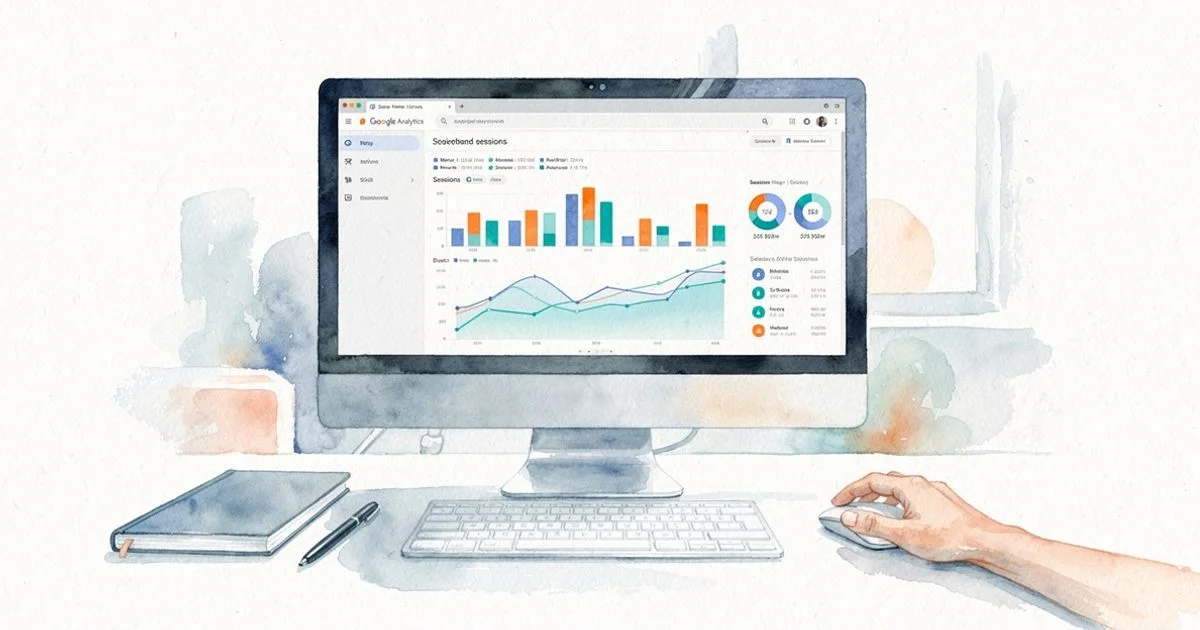
Each step below says what to do, why it matters and what screen to look at. Steps 1 to 5 cover your own site. Step 6 covers competitors. Steps 7 and 8 cover AI referrals and an ongoing routine.
Step 1: Decide whether you're measuring your own site or a competitor's
What to do: Write down the question you want answered. "How many visitors did our pricing page get last month?" needs your analytics. "How much organic traffic does our rival get?" needs a website traffic checker.
Why it matters: Mixing the two leads to bad comparisons. Your GA4 counts and a third-party estimate use different methods, so comparing them directly misleads. Compare your estimate with their estimate inside the same tool instead. Screenshot note: a simple two-column list, "own site" and "competitors," with the tool for each.
Step 2: Create a Google Analytics 4 property and install the tag
What to do: In Google Analytics, open Admin and create a property. Add a web data stream with your site URL. Copy the measurement ID or the Google tag, then add it to your site header through your CMS, a plugin or Google Tag Manager. Use one method only.
Why it matters: This tag is the source of your sessions and pageviews, users and conversions. Confirm it works by opening the Realtime report while you browse your site in another tab. Then go to Admin, Data collection and modification, Data retention, and set event data retention to 14 months. Screenshot note: the GA4 Realtime report showing your own visit.
Step 3: Verify your site in Google Search Console
What to do: Open Google Search Console and add a Domain property. Verify it with a DNS record at your domain registrar. Then link Search Console to GA4 in the GA4 Admin product links.
Why it matters: GA4 shows what visitors do after they land. Search Console shows what happened before the click: the queries, impressions, average position and click-through rate on Google's search results. According to Google Search Console Help, it stores 16 months of this data, so you get year-over-year comparisons for SEO. Screenshot note: the Search Console Performance tab with clicks and impressions toggled on.
Step 4: Choose the core traffic metrics to track
What to do: Build a short list of metrics to track. GA4 offers hundreds, but a handful answer most questions. Start with these:
- Users: the number of people who visited. GA4 also splits new vs returning visitors, which shows whether content brings people back.
- Sessions and pageviews: sessions are visits, and pageviews (called "views" in GA4) count every page loaded. Views per session hint at depth.
- Engagement rate: the share of sessions that lasted a meaningful time, viewed more than one page or triggered a key event.
- Bounce rate: in GA4, the opposite of engagement rate. It is the share of sessions that were not engaged.
- Conversion rate: the share of sessions or users that completed a key event, like a sign-up or purchase.
Why it matters: These website traffic metrics answer three questions: how many came, did they care, and did they act. Conversion rate is the quality check. A page with less traffic but strong conversions often beats a busy page that converts nobody. Screenshot note: GA4 Reports, Engagement, Pages and screens.
Step 5: Break down your traffic sources
What to do: In GA4, open Reports, Acquisition, Traffic acquisition. Set the primary dimension to Session default channel group, then switch to Session source / medium for detail. You will see rows like google / organic, direct / (none) and facebook.com / referral.
Why it matters: Traffic sources tell you where growth comes from. The main types are:
- Organic traffic: unpaid visits from search engines like Google and Microsoft Bing.
- Direct: typed URLs, bookmarks and visits with no referrer data.
- Referral traffic: clicks from links on other sites, including AI assistants.
- Paid: ads on search engines or social networks.
- Social: visits from Facebook, Twitter (now X), LinkedIn and other platforms. Twitter marketing campaigns show up here.
- Email: newsletter and lifecycle clicks, best tracked with UTM parameters.
Tag every campaign link with UTM parameters so it lands in the right channel. Screenshot note: the GA4 Traffic acquisition report sorted by sessions.
Step 6: Estimate competitor traffic with a website traffic checker
What to do: Enter a competitor's domain into your chosen tool. Look at estimated monthly visits, the trend line, the split between organic and paid, and the top pages and keywords. Repeat for your own domain in the same tool so the comparison is like for like.
Why it matters: This is how to check competitor website traffic without their analytics. The useful intel is relative: who is growing, which pages pull the most search traffic, and which keywords you are missing. Treat the totals as rough. Screenshot note: the domain overview in your traffic checker with the traffic trend chart.
| Tool | Best for | Data source | Cost |
|---|---|---|---|
| Google Analytics 4 | Your own site behavior and conversions | First-party tag | Free |
| Google Search Console | Your own Google search clicks and queries | Google search data | Free |
| Semrush | Competitor organic and paid estimates | Rankings and clickstream | Paid, with limited free use |
| Ahrefs | Competitor organic traffic and backlinks | Rankings and click models | Paid, with free webmaster tools |
| Similarweb | Total traffic and channel mix estimates | Panels and partner data | Free version and paid plans |
Step 7: Track referrals and visibility from AI answers
What to do: In GA4, filter Traffic acquisition by session source for chatgpt.com, perplexity.ai, gemini.google.com and copilot.microsoft.com. For an ongoing view, create a custom channel group in Admin called "AI assistants" that matches these sources with a regex rule.
Why it matters: People now ask AI assistants for recommendations, then click the cited sources. Those clicks arrive as referrals, but GA4 lumps them in with other referral traffic by default. Note that Search Console includes clicks from Google AI Overviews and AI Mode inside its regular web search totals, without a separate filter. So you also need visibility tracking to see when AI answers mention you. Screenshot note: the custom AI assistants channel in Traffic acquisition.
Step 8: Set up a monthly traffic analysis routine
What to do: Once a month, compare the last 28 days with the prior period and the same period last year. Check users, sessions, engagement rate and conversions by channel. Note your top pages, biggest gainers and biggest losers in Search Console. Write three bullet points: what changed, why, and what you will do.
Why it matters: Weekly numbers swing with holidays and news. A monthly routine shows real trends. GA4's Explore section helps here, letting you build a free-form report once and reuse it. Screenshot note: a GA4 Explore report comparing two date ranges.
Common mistakes and how to fix them
Most bad traffic data comes from a few setup errors. Check for these before you trust any report.
The tag is installed twice, so pageviews look doubled
This happens when a plugin adds the GA4 tag and someone also pastes it into the theme header or Tag Manager. Every page then sends two views. Look for a suspiciously high views per session figure. Fix it by opening GA4 DebugView or Google Tag Assistant, confirming how many tags fire, then removing all but one install.
Your own visits and bot traffic inflate the numbers
Your team visits the site constantly, which skews small sites most. In GA4, go to the data stream settings, define internal traffic by office IP, then activate the internal traffic data filter. GA4 already excludes known bots automatically. Strange spikes from one city or a single page with zero engagement usually point to spam, so annotate them and exclude them from analysis.
Data retention is left at the 2 month default
According to Google Analytics Help, GA4 standard properties retain user-level and event-level data for 2 months by default, with a maximum of 14 months. Standard reports still show aggregated history, but Explore reports lose detail after the window closes. Change the setting to 14 months right away, because the change does not recover data you already lost.
Treating third-party estimates as exact numbers
A traffic checker might say a rival gets a certain number of visits, but that figure is a model. Estimates for small or niche sites can be far off in either direction. Use them to compare competitors against each other and to watch direction over time. Never put an estimate next to your own GA4 count as if they were equal.
Chasing total traffic instead of conversions
More visitors feels like progress, but a viral post that brings the wrong audience adds little. Picture a SaaS company whose blog traffic doubles while trial sign-ups stay flat. The fix is to mark sign-ups, demo requests and purchases as key events in GA4. Then judge every channel and page by conversions, not just sessions.
When to use Zivooo alongside your analytics
GA4 and Search Console tell you what happened. They are less good at telling you what to do next, and neither shows whether AI answers mention your brand. That is where an SEO and visibility platform fits next to your analytics.
Connect Google Search Console to see which pages and keywords drive clicks
Search Console data is rich but slow to dig through. Connecting it to a rank tracking tool groups clicks and impressions by page and keyword, so you can spot which queries are slipping and which pages sit just off page one. That turns raw traffic data into a short list of targets.
Track rankings and AI visibility in ChatGPT, Google AI Overviews, AI Mode and Gemini
Referral clicks only show part of the picture. Many people read an AI answer and never click. Tracking whether your brand appears in ChatGPT, Google AI Overviews, AI Mode and Gemini for your key prompts shows the visibility that analytics can't see, alongside daily Google rankings.
Turn traffic drops into a ranked list of fixes and content refreshes
When organic traffic drops, you need to know which pages lost ground and why. Comparing your pages to what currently ranks on the SERP shows gaps in coverage, structure and freshness. From there, you can refresh the pages with the most lost clicks first instead of guessing.
FAQs
How can you see how much web traffic a website gets?
For your own site, open Google Analytics 4 and go to Reports, then Acquisition, to see users and sessions by channel. Search Console adds the clicks you earn from Google search. For any other site, enter the domain into a website traffic checker like Semrush, Ahrefs, SE Ranking or Similarweb to get an estimate of monthly visits. That is the quickest way to see how many visitors a website gets when you don't own it.
Can ChatGPT analyze a website's traffic?
ChatGPT can't see a site's real traffic because it has no access to its analytics. It can help you interpret data you export from GA4 or Search Console, such as spotting trends, summarizing a CSV or suggesting why traffic dropped. The numbers still have to come from your own tools. Treat its explanations as hypotheses you check against the data.
What are the top 5 web analytics tools?
Google Analytics 4 and Google Search Console cover your own site for free. Semrush, Ahrefs and Similarweb are the most common choices for estimating competitor traffic. Privacy-focused options like Plausible or Matomo work well if you want cookieless tracking. Microsoft Clarity is a free add-on for session recordings and heatmaps.
What are the top 3 website performance metrics to monitor?
Start with users (how many people visit), traffic sources (where they come from) and conversion rate (how many take the action you care about). Together they tell you how much traffic you get, how to grow it and whether it's worth anything. Add engagement rate once those three are stable.
How accurate are website traffic checkers?
Third-party checkers are estimates built from keyword rankings and clickstream panels, so they can miss by a wide margin, especially for small sites. Accuracy tends to be better for large, high-traffic domains. Use them to compare trends and relative size between competitors, not as exact visit counts.
Next steps: turn your traffic data into a plan
Once your setup is clean, the goal is action. These three moves turn a dashboard into a plan you can run this quarter.
Review your top 10 pages by sessions and conversions
Open GA4's Pages and screens report, sort by sessions, then add key events. Note which pages bring traffic but no conversions and which convert well but get few visits. The first group needs better calls to action. The second group needs more traffic through SEO, internal links or promotion.
Pick one traffic source to grow this quarter
Spreading effort across every channel rarely works. Choose one source, such as organic search, referrals or email, and set a clear target for sessions and conversions. Review it in your monthly routine so you can see whether the work is paying off.
Start a 14 day free trial of Zivooo, no card
If you want to connect your traffic data to rankings and AI answers, Zivooo gives you daily Google rank tracking, Search Console insights, AI visibility tracking in ChatGPT, Google AI Overviews, AI Mode and Gemini, and publishing to WordPress and Ghost. It is a practical option for founders and marketers who want traffic data that leads to action.
WRITTEN BY

Muntasir Rashid
Hello 👋 I’m Muntasir, founder of Zivooo and a content marketer with 20+ years of hands-on experience in marketing, growth, and building businesses.
I’ve spent the last two decades marketing my own ventures and helping clients grow through content, SEO, and digital marketing. Along the way, I’ve learned that the best strategies rarely come from theory, they come from testing, experimenting, failing, and figuring out what actually works.
Content marketing and growth are my forte. Here, I share practical insights, experiments, and lessons from the trenches covering SEO, GEO, AEO, AI search, and growth strategies for modern tech companies.
Keep learning, keep growing
We have more articles on similar topics to help grow your business.

How to Check Web Traffic of a Website: Yours or Any Competitor's
How to check web traffic of a website: use Google Analytics 4 and Search Console for your own site, or a third-party tool to estimate any competitor's traffic.


DR Checker: What Your Domain Rating Score Really Means
A DR checker reveals your Domain Rating, a 0-100 score measuring backlink profile strength. Learn what the score means, how it is calculated, and how to use it.