How to Find Website Traffic for Your Site or a Competitor

Last updated November 2026
Website traffic is the number of visitors, sessions and pageviews a site receives over a set period. If you own the site, open Google Analytics 4 to see total users, sessions and traffic sources. Then use Google Search Console to see clicks from Google Search, with up to 16 months of history. If you don't own the site, a website traffic checker like Similarweb, Ahrefs or Semrush can estimate monthly visits. Treat those estimates as ranges, not exact counts.
This guide shows how to find website traffic in both cases. You'll learn which reports to open, what each number means and how to spot visits from AI answers like ChatGPT and Google AI Overviews. Every step separates first-party data (exact, from your own tools) from third-party estimates (modeled, for competitor sites).
How do you find website traffic?
The short answer depends on ownership. For your own site, use first-party tools that read real visits. For someone else's site, use a traffic checker that models visits from outside data. Both answer the question of how much traffic a website gets, but only one gives you exact numbers.
Website traffic matters because it shows whether people find you, where they come from and what they do next. Good traffic data helps you understand which channels perform, so you stop wasting budget on campaigns that don't bring qualified visitors. It also shows where your SEO and content work is paying off.
Traffic is measured in a few core units:
- Users (visitors): the people who arrive, counted by browser or device.
- Sessions: each visit, which can include several pages.
- Pageviews: every page loaded during those sessions.
Analytics tools also split users into new and returning visitors. Unique visitors tell you about reach. Returning visitors tell you about loyalty and content quality. A healthy site usually grows both over time.
What you'll need before you check website traffic
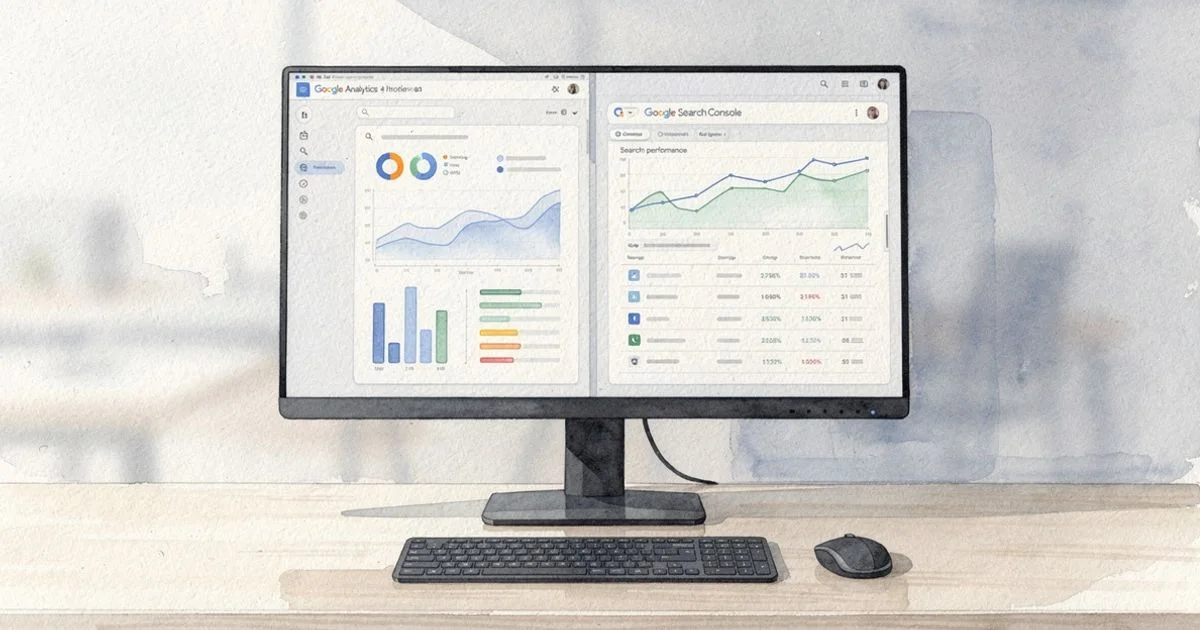
You don't need much to get started. A browser, the right logins and one traffic checker will cover most cases. Here is what to have ready before you begin.
Access to Google Analytics 4 and Google Search Console
For your own site, you need Google Analytics 4 (GA4) and Google Search Console. According to Google Analytics Help, Universal Analytics stopped processing data on July 1, 2023, which made GA4 the default first-party traffic tool. If you still look for old Universal Analytics views, they won't show new data.
Search Console is free and shows how your pages perform in Google Search. You need owner or user access to the verified property. Ask your developer or SEO lead to add your Google account if you don't have it yet.
A free or paid website traffic checker for competitor sites
To check competitor traffic, you need a third-party tool. Similarweb, Semrush and Ahrefs are common choices. Each offers a free website traffic checker with limited results, plus paid plans with more countries and traffic history, deeper channel splits and mobile data.
Some browser extensions also show quick estimates, Domain Authority style scores and keyword data while you browse a SERP. These are handy for a fast look but are less detailed than the full tools.
Time estimate: 15 to 30 minutes
Plan on 15 to 30 minutes for a first pass. Checking your own site in GA4 and Search Console takes about 10 minutes once you know where to click. Estimating one or two competitor sites adds another 10 to 20 minutes.
How to find website traffic, step by step
Follow these steps in order. Steps 2 to 5 cover sites you own. Step 6 covers competitor sites. Step 7 covers AI referrals, and Step 8 helps you turn numbers into a habit.
Step 1: Decide if you're checking your own site or someone else's
What to do: Write down the domain and whether you have analytics access. If it's my website or a client site with access, use first-party tools. If it's a competitor website, use a traffic checker.
Why it matters: First-party tools count real visits from tracking code. Third-party tools estimate. Mixing the two in one report leads to bad comparisons, so pick the right source before you analyze website traffic.
Screenshot note: No screen needed. A simple note with "owned" or "competitor" next to each domain works.
Step 2: Open the Traffic acquisition report in Google Analytics 4
What to click: In GA4, go to Reports, then Acquisition, then Traffic acquisition. Set the date range in the top right, for example the last 28 days. The table shows sessions, users and engagement by channel group.
Why it matters: This is the fastest way to see how to find website traffic totals and where visits come from. It answers how to see traffic sources in Google Analytics without building a custom report.
Screenshot note: GA4 Reports > Acquisition > Traffic acquisition, with the "Session default channel group" column visible.
Step 3: Check Google search clicks in Google Search Console
What to click: In Search Console, open Performance, then Search results. Turn on Total clicks, Total impressions, Average CTR and Average position. Switch between the Queries and Pages tabs.
Why it matters: According to Google Search Console Help, Search Console stores up to 16 months of search performance data. That makes it the best organic traffic checker for Google search, since it shows the exact queries and pages that earn clicks.
Screenshot note: Search Console > Performance > Search results, with all four metric cards turned on and the Queries tab selected.
Step 4: Break down your traffic sources (organic, direct, referral, paid, social, email)
What to do: Back in the GA4 Traffic acquisition report, read each channel row. Note the sessions and engagement rate for each one.
- Organic traffic: unpaid visits from search engines like Google and Microsoft Bing.
- Direct traffic: typed URLs, bookmarks and visits with no known source.
- Referral traffic: clicks from links on other websites.
- Paid: ad clicks from Google Ads, Microsoft Ads and similar platforms.
- Social: visits from social media such as Facebook, LinkedIn and others.
- Email: clicks from newsletters or CRM systems, if your links use UTM tags.
Why it matters: Traffic sources tell you where visitors come from and how they behave once they arrive. If paid sessions have low engagement, you may be wasting budget. If organic traffic grows, your SEO and content work is landing.
Screenshot note: GA4 Traffic acquisition table sorted by Sessions, with Engagement rate visible.
Step 5: Cross-check with your CMS or hosting dashboard
What to do: Open the stats panel in your CMS or host. WordPress plugins, Shopify, Squarespace and many hosts show basic visit counts.
Why it matters: Server logs and CMS stats count differently from GA4. They may include bots or visitors who block scripts. A rough match confirms your tracking works. A big gap suggests missing tags or consent issues.
Screenshot note: Your CMS or host analytics overview, same date range as GA4.
Step 6: Estimate a competitor's traffic with a website traffic checker
What to do: Enter the competitor domain into Similarweb, Semrush or Ahrefs. Look at estimated monthly visits, top countries, channel split and top organic keywords.
Why it matters: This is how to check competitor website traffic when you have no analytics access. These tools model visits from clickstream panels and ranking data, so read them as ranges. Compare trends and relative size, not exact visitor counts.
Screenshot note: Traffic checker overview for the competitor domain, showing monthly visits and the traffic sources breakdown.
Step 7: Find visits coming from ChatGPT, Gemini and AI Overviews
What to click: In GA4, open Traffic acquisition and change the dimension to Session source. Search for chatgpt.com, gemini.google.com, perplexity.ai and copilot.microsoft.com. You can also build an exploration with a filter that matches these sources.
Why it matters: AI answers now send real visitors, and you need to know how to track AI referral traffic. Google AI Overviews and AI Mode clicks are reported inside Google search traffic in Search Console, not as a separate line. Some AI apps also strip the referrer, so a share of those visits lands in direct traffic.
Screenshot note: GA4 Traffic acquisition with Session source selected and a search filter for "chatgpt".
Step 8: Record your baseline and set a monthly review
What to do: Copy this month's users, sessions, organic clicks and top channels into a simple sheet. Add a row for AI referrals. Set a calendar reminder for the same day each month.
Why it matters: One snapshot tells you little. A monthly website traffic analysis shows trends, seasonality and the effect of new content. It also gives you a clean record before you try to increase website traffic.
Screenshot note: A spreadsheet with columns for month, users, sessions, organic clicks, referral, direct and AI sessions.
Common mistakes and troubleshooting
Most traffic confusion comes from a handful of repeat problems. Here is how to spot and fix each one.
Confusing users, sessions and pageviews
One user can start several sessions, and one session can include many pageviews. Reporting "10,000 visitors" when you mean sessions inflates your reach. Always label the metric. For reach, use users. For activity, use sessions. For content depth, use pageviews per session.
GA4 and Search Console numbers don't match
This is normal. Search Console counts clicks on Google search results. GA4 counts sessions that load your tracking tag. Consent banners, ad blockers and redirects all create gaps. Use Search Console for Google search performance and GA4 for on-site behavior, and don't expect them to line up exactly.
Treating third-party estimates as exact counts
A traffic checker can be far off, especially for small or niche sites with thin panel data. Two tools often give two different numbers for the same domain. Use one tool consistently, compare competitors side by side and focus on direction and relative size.
Missing tracking code or filtered internal traffic
If traffic drops to near zero overnight, check that the GA4 tag still fires on every page. Theme updates and new templates often remove it. Also check your data filters. Internal traffic filters are useful, but an overly broad filter can hide real visitors.
AI referrals hiding inside direct traffic
When an AI app opens links without a referrer, GA4 files the visit as direct. If direct traffic rises on deep blog pages that nobody would type by hand, AI answers may be the cause. Look at landing pages for direct sessions and compare them with pages you know AI tools cite.
When to use Zivooo to track traffic and AI visibility
GA4 and Search Console show what already happened. They don't show where you rank each day or whether AI engines mention you. That's the gap a dedicated SEO and GEO platform fills.
Connect Google Search Console and track rankings in one account
Zivooo connects to Google Search Console and adds daily Google rank tracking. You see clicks, impressions and positions next to each other, so a drop in traffic comes with a clear reason. It costs $10 a domain a month, and you run it on your own AI and data keys, so every cost is up front.
See if ChatGPT, Gemini and Google AI answers cite you
Referral data only shows clicks. AI visibility tracking shows whether ChatGPT, Gemini, Google AI Overviews and Google AI Mode mention your brand at all. Brand Truth flags what AI engines get wrong about you, so you can fix it with better content.
Turn traffic gaps into a ranked list of fixes and new articles
Keyword research, AI prompt research and a content plan built from competitors and search data point to what to write next. A live editor scores drafts against 40+ SEO, GEO and AEO factors from ranking pages. You can publish to WordPress or Ghost on a schedule.
FAQs
These frequently asked questions cover what people search most after they learn how to find website traffic.
How do you find the traffic source of a website?
For your own site, open Google Analytics 4 and go to Reports, then Acquisition, then Traffic acquisition. It splits visits by channel: organic search, direct, referral, paid, social and email. Switch the dimension to Session source to see specific domains. For a competitor, tools like Similarweb or Semrush show estimated traffic sources by channel, which you can compare across several sites.
How do you check traffic flow on a website?
Use the Path exploration report in Google Analytics 4 to see the pages people land on, where they go next and where they leave. Find it under Explore, then Path exploration. Pair it with landing page data in Search Console to see which Google queries start those visits. Together, they show the full journey from search to exit.
Can ChatGPT analyze a website's traffic?
ChatGPT can't see a site's real traffic because it has no access to its analytics. It can read a page and summarize content, or help you interpret a GA4 or Search Console export you paste in. That makes it a useful helper for analysis, not a data source. For actual numbers, use first-party analytics or a traffic checker.
How accurate are free website traffic checkers?
They're estimates built from clickstream panels and keyword rankings, so they can be off by a wide margin, especially for small sites. Large, well-known sites tend to get closer estimates because more panel data exists. Use free tools to compare competitors and spot trends, not to report exact visitor counts to clients or investors.
How do you get more traffic to your website?
Start with the queries in Search Console where you already get impressions but few clicks. Improve those pages with clearer titles and meta descriptions and better answers. Then publish new content around related topics. Track rankings and AI citations so you can see what's working each month and double down on it.
Next steps: turn your traffic data into growth
Now you know how to find website traffic for your site and estimate it for others. The next move is to act on what the data shows. Two simple plays work for most sites.
Pick the pages with impressions but low clicks
In Search Console, sort pages by impressions and look for low CTR. These pages already rank, but searchers skip them. Rewrite titles and meta descriptions to match the query intent, and tighten the opening answer. Small changes here often bring the fastest gains in organic traffic.
Plan content around the queries already sending you traffic
Your top queries reveal what Google already trusts you on. Group them by topic and write supporting articles that answer related questions. Link them together. This builds topical depth and helps both Google search rankings and AI citations over time.
Start a 14 day free trial, no card
You can test the full workflow on your own domain for 14 days free, with no card required. Connect Search Console, add a few competitors and check whether AI answers mention you. Then compare the results with your monthly baseline.
If you want to see your Google traffic, rankings and AI citations side by side and know what to fix next, Zivooo gives you Search Console insights, daily rank tracking, AI visibility tracking in ChatGPT and Gemini, competitor content plans and publishing to WordPress. It is a practical option for marketers and founders who want to grow traffic from Google and AI answers.
WRITTEN BY

Muntasir Rashid
Hello 👋 I’m Muntasir, founder of Zivooo and a content marketer with 20+ years of hands-on experience in marketing, growth, and building businesses.
I’ve spent the last two decades marketing my own ventures and helping clients grow through content, SEO, and digital marketing. Along the way, I’ve learned that the best strategies rarely come from theory, they come from testing, experimenting, failing, and figuring out what actually works.
Content marketing and growth are my forte. Here, I share practical insights, experiments, and lessons from the trenches covering SEO, GEO, AEO, AI search, and growth strategies for modern tech companies.
Keep learning, keep growing
We have more articles on similar topics to help grow your business.

10 Traffic Estimation Tools to Check Any Website's Traffic
Traffic estimation tools model competitor website visits using clickstream data, keyword rankings, and click-through rates.


8 Best Free Website Traffic Checker Tools for Marketers
Best free website traffic checkers compared: Similarweb for competitor traffic, Semrush for organic data, and Google Analytics for your own site's real numbers.