How to Check Website Hits on Your Own Site or Any Competitor

Last updated November 2026
A website hit is any single file request your server answers, whether that file is a page, an image, a script or a stylesheet. To learn how to check website hits on a site you own, open your hosting control panel (cPanel or AWStats) for raw server hits. Then use Google Analytics 4 for users, sessions and page views, and Google Search Console for clicks from Google search.
For a site you don't own, enter the domain into a website traffic checker like Semrush, Similarweb or Ahrefs. You get an estimate, not an exact count. One page view can log dozens of hits from images and scripts, so hits always look bigger than real visitors.
Start early, because history matters. According to Google Search Console Help, Search Console stores 16 months of search performance data. According to Google Analytics Help, GA4 keeps user-level and event-level data for 2 or 14 months on standard properties, depending on your settings.
How do you check website hits?
The answer depends on two things: what you want to count and whose site it is. Most people searching for how to check website hits actually want to know how many real people visited. That is a different number from hits, and mixing them up causes most of the confusion in traffic analysis.
Website traffic analysis is the process of collecting, segmenting and interpreting visit data, including volume, traffic sources, behavior and conversions. The goal is to guide marketing, editorial or technical decisions. Raw hits are only the first layer of that picture.
Hits vs. visits vs. page views: what you're actually counting
Here is the difference between the metrics you will see in your tools:
- Hits: every file the server delivers. One page with 15 images, 4 scripts and 2 stylesheets creates more than 20 hits.
- Page views: each time a page loads in a browser. GA4 calls these "views."
- Sessions (visits): one person's period of activity on your site, which can include several page views.
- Unique visitors: the number of distinct people, which GA4 reports as "users."
Hits vs. unique visitors is the biggest gap. A site with 50,000 hits a day might only have a few hundred unique visitors. For any KPI you report to a client or boss, use users and sessions, not hits.
Your own site vs. someone else's site
On your own website, you get exact numbers. Server logs, Google Analytics and Search Console all measure real activity on real infrastructure you control.
On a competitor website, you only get estimates. According to Similarweb Support, third-party traffic tools model visits from clickstream, search and ranking data rather than direct site logs, so their numbers are estimates. Some vendors also blend in panel or ISP data, but none of them can see another site's private analytics.
What you'll need before you start
You only need a few accounts to check website traffic properly. Gather them first so the setup takes one sitting instead of three.
Admin access to your site or hosting account
You need login access to your hosting control panel to see server logs and AWStats. You also need admin access to your CMS, such as WordPress, Shopify or HubSpot, so you can add a tracking tag. If a developer or web development partner manages your hosting, ask them for a user with log access.
A Google account for GA4 and Search Console
Your Google account becomes the owner of both GA4 and Search Console. Use a company account rather than a personal one, so access doesn't leave when someone changes jobs. You can add teammates later with read-only permissions.
Time estimate: 15 minutes to set up, 24 to 48 hours for first data
Installing GA4 and verifying Search Console takes about 15 minutes if you have access ready. Realtime data in GA4 shows up almost right away. Standard reports usually fill in within 24 to 48 hours, and Search Console can take a few days to show its first performance data.
How to check website hits step by step
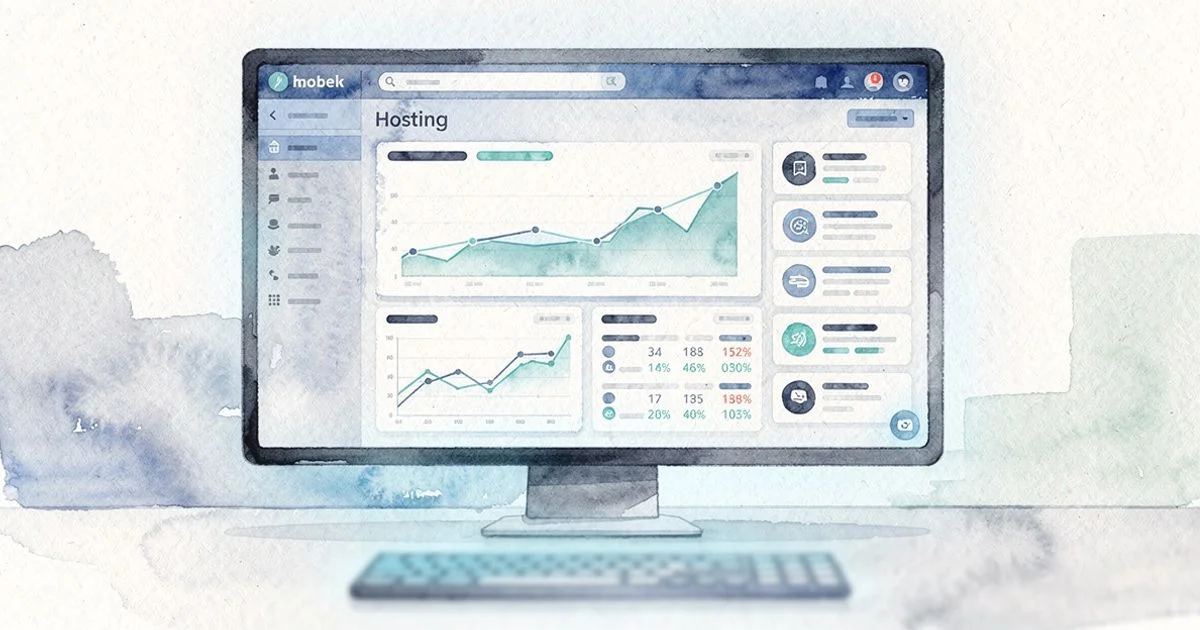
Follow these six steps in order. Each one adds a layer: raw hits, then people, then search, then platform data, then competitors, then trends.
Step 1: Check raw hits in your hosting control panel (cPanel, AWStats)
What to do: Log in to cPanel and scroll to the Metrics section. Open AWStats, Webalizer or Raw Access, then pick your domain. AWStats shows hits, pages, unique visitors, bandwidth and top referrers by month.
Why it matters: Server logs record every request, including bots and visitors who block JavaScript. They catch traffic that tag-based analytics miss. They are also the best place to spot crawler spikes and broken file requests.
Screenshot note: cPanel > Metrics > AWStats > View (your domain). For deeper server log analysis, tools like GoAccess or Cloudflare analytics (if your site runs through Cloudflare) give a cleaner view of requests and bot traffic.
Step 2: Install Google Analytics 4 and find users, sessions and page views
What to do: In Google Analytics, go to Admin > Create > Property. Add a web data stream with your URL and copy the measurement ID that starts with "G-". Paste the tag into your site header, or use a plugin or Google Tag Manager.
Next, set retention. Go to Admin > Data collection and modification > Data retention and choose 14 months. The default is shorter, and you can't recover detailed data once it expires.
Why it matters: According to Google Analytics Help, Universal Analytics standard properties stopped processing new data on July 1, 2023, so GA4 is the current version of Google Analytics. Old setup guides that mention "UA-" codes no longer apply.
Screenshot note: GA4 Reports > Engagement > Pages and screens shows the GA4 page views report by page. Reports > Acquisition > Traffic acquisition shows traffic sources. Reports > Realtime shows who is on your site right now.
If you need a privacy-first alternative, Matomo Analytics is an open-source tool you can self-host. France's data protection authority, the CNIL, has published guidance on audience measurement that can run without consent under strict conditions, and Matomo can be configured to follow it.
Step 3: Verify Google Search Console to see clicks and impressions from Google
What to do: Open Google Search Console and add a property. A Domain property covers every subdomain and protocol, and you verify it with a DNS TXT record. A URL-prefix property can verify through your existing GA4 tag or an HTML file.
Why it matters: Search Console shows Google search clicks, impressions, average position and click-through rate by query and page. GA4 can't show you which keywords brought people in. Search Console can, which makes it the core of any SEO traffic analysis.
Screenshot note: Search Console > Performance > Search results. Tick all four metric boxes, then switch between the Queries and Pages tabs. Set the date range to the full 16 months to see long-term patterns.
Step 4: Check your CMS or platform dashboard (WordPress, Shopify, HubSpot)
What to do: Most platforms include basic stats. On WordPress, Jetpack Stats or Site Kit by Google show visits inside your dashboard. Shopify shows sessions and conversion rate under Analytics. HubSpot shows sessions by source in its traffic analytics reports.
Why it matters: Platform dashboards tie traffic data to business results, like orders, form fills or a CTA click. They are quick to read, but each one counts slightly differently, so don't expect them to match GA4 exactly.
Screenshot note: WordPress > Site Kit > Dashboard, or Shopify Admin > Analytics > Reports. For behavior data like scroll depth and clicks, add Microsoft Clarity or Hotjar. Heatmap data shows where people get stuck on a page.
Step 5: Use a website traffic checker to estimate a competitor website's traffic
What to do: Enter a competitor's domain into a website traffic checker such as Semrush, Similarweb or Ahrefs. Note the estimated monthly visits, top pages, top countries and traffic sources. Check two or three tools, because each uses a different model.
Why it matters: Competitor website traffic estimates help you size a market and find the pages and keywords that pull visitors to rivals. Use them for direction and comparison, not as exact counts.
Screenshot note: In most tools, it's Domain Overview > enter URL > Traffic. A free website traffic checker usually limits you to a few lookups a day, which is enough for a quick competitor check.
| Tool | Best for | Exact or estimate | Cost |
|---|---|---|---|
| cPanel / AWStats | Raw hits and bots | Exact (your site) | Included with hosting |
| Google Analytics 4 | Users, sessions, page views | Exact (your site) | Free |
| Google Search Console | Google search clicks and queries | Exact (your site) | Free |
| Matomo | Privacy-focused web analytics | Exact (your site) | Free self-hosted, paid cloud |
| Semrush, Similarweb, Ahrefs | Competitor traffic estimates | Estimate | Free tiers and paid plans |
Step 6: Compare your numbers and read the trend, not the single day
What to do: Compare this month with last month and with the same month last year. Look at users, sessions, engagement rate and Search Console clicks together. Segment data by source, device and landing page to see where changes come from.
Why it matters: Single days swing for random reasons: a holiday, a bot, a newsletter send. Week-over-week and year-over-year trends tell you whether your SEO and content are working.
Screenshot note: In GA4, use the date picker's "Compare" toggle. For a shared dashboard, connect GA4 and Search Console to Looker Studio, Google's free reporting tool, so the whole team sees one view.
Common mistakes and troubleshooting
Most traffic problems come from a handful of predictable errors. Here is how to spot and fix each one.
Treating raw hits as visitors
A website hits counter that shows 100,000 hits might represent only a few thousand visits. Hits count files, not people. Report users and sessions from GA4 instead, and keep hits for technical checks like server load or crawler activity.
GA4 shows zero data after setup
First, open Reports > Realtime and visit your own site in another tab. If nothing appears, the tag isn't firing. Check that the measurement ID is correct, that the tag sits on every page, and that a cookie banner isn't blocking it before consent.
If Realtime works but standard reports are empty, wait. Processing usually takes 24 to 48 hours.
Your own visits and bots inflate the count
Your team visits the site all day, and that skews small-site numbers. In GA4, define internal traffic by IP under your data stream's tag settings, then activate the internal traffic filter. Bots are another source of noise, so compare server logs with GA4 and consider Cloudflare's bot controls.
GA4 and Search Console numbers don't match
This is normal. Search Console counts clicks from Google search results. GA4 counts sessions from every source, and it misses visitors who block scripts or decline cookies. Time zones and attribution also differ. Use each tool for what it measures best rather than trying to force them to agree.
Trusting third-party estimates as exact counts
How accurate are free website traffic checkers? They are useful for direction but not for precise numbers. As Similarweb Support explains, these tools model visits from clickstream, search and ranking data instead of reading site logs. Estimates tend to be more reliable for large sites and less reliable for small or niche ones.
A good habit is to test a tool against your own site. Compare its estimate with your real GA4 numbers, and you'll learn how far off it runs before you trust it on a competitor.
When to use Zivooo alongside your analytics
Analytics tells you what happened. It doesn't tell you which rankings moved, whether AI answers mention you, or what to fix first. That's where an SEO and AI visibility layer helps.
Track the keywords behind your search console clicks
Search Console shows average position, but averages hide movement. Zivooo runs daily Google rank tracking and pulls Search Console insights into one view. You can see which keyword drop caused a traffic dip instead of guessing.
See if ChatGPT, Gemini and Google AI answers cite your site
More searches now end in an AI answer, and that traffic doesn't always show up as a clean source in GA4. Zivooo tracks AI visibility in ChatGPT, Google AI Overviews, Google AI Mode and Gemini. Its Brand Truth view also flags what AI engines get wrong about your brand.
Fix the pages losing traffic with a ranked list of fixes
Once you know which page is slipping, the live optimization editor scores it against the pages that rank above you. It checks 40+ SEO, GEO and AEO factors, so you fix the gaps that matter first.
FAQs
Can you tell how many hits a website gets?
Yes. For your own site, your hosting control panel shows exact server hits, and Google Analytics shows users, sessions and page views. For any other site, a website traffic checker such as Semrush, Similarweb or Ahrefs gives an estimate based on search and clickstream data. It never reads the site's real logs, so treat the number as a range.
How do I check activity on my website?
Open Google Analytics 4 and go to Reports > Realtime to see who is on your site right now. For page views over time, go to Reports > Engagement > Pages and screens. Pair it with Google Search Console to see which Google searches brought people in, and add Clarity or Hotjar if you want to watch behavior on the page.
What is the difference between hits and visits?
A hit is every file the server delivers, including images, scripts and CSS, so one page can create 20 or more hits. A visit, called a session in GA4, is one person's period of activity on your site. Visits and unique visitors are far better measures of real traffic than hits.
Can ChatGPT analyze a website's traffic?
Not directly. ChatGPT can't see a site's private analytics or server logs, so it can't tell you real visit counts. You can export your GA4 or Search Console data and ask it to spot trends or summarize changes. The numbers still have to come from your own tools.
How do I get more hits on my website?
Find the pages and keywords already getting impressions in Google Search Console. Then improve those pages so they rank higher and earn more clicks. Publishing consistent, useful content and making sure AI answers like ChatGPT and Google AI Overviews can cite you also brings in new visitors.
Next steps: turn your traffic data into more visitors
Knowing how to check website hits is only useful if you act on what you see. Build a small routine around the numbers.
Set a weekly 10-minute traffic check
Pick the same day each week. Check GA4 users and sessions, Search Console clicks and impressions, and your top five landing pages. Write down one note about what changed. Over a few months, those notes become your own record of what moves your traffic.
Pick one underperforming page to improve
Find a page with high impressions but a low click-through rate in Search Console. Rewrite its title and meta description, update the content, and answer the questions searchers ask. Check its clicks again in four weeks and compare.
Start tracking rankings and AI visibility
Analytics tools measure visits after they happen. Rank and AI visibility tracking show you what drives those visits, so you can react before traffic drops.
If you want to connect your traffic numbers to the rankings and AI answers behind them, Zivooo gives you daily Google rank tracking, Search Console insights, AI visibility tracking in ChatGPT, Gemini and Google AI Overviews, and a live optimization editor. It is a practical option for marketers and founders who want to turn traffic checks into fixes that bring more visitors.
WRITTEN BY

Muntasir Rashid
Hello 👋 I’m Muntasir, founder of Zivooo and a content marketer with 20+ years of hands-on experience in marketing, growth, and building businesses.
I’ve spent the last two decades marketing my own ventures and helping clients grow through content, SEO, and digital marketing. Along the way, I’ve learned that the best strategies rarely come from theory, they come from testing, experimenting, failing, and figuring out what actually works.
Content marketing and growth are my forte. Here, I share practical insights, experiments, and lessons from the trenches covering SEO, GEO, AEO, AI search, and growth strategies for modern tech companies.
Keep learning, keep growing
We have more articles on similar topics to help grow your business.

10 Traffic Estimation Tools to Check Any Website's Traffic
Traffic estimation tools model competitor website visits using clickstream data, keyword rankings, and click-through rates.


8 Best Free Website Traffic Checker Tools for Marketers
Best free website traffic checkers compared: Similarweb for competitor traffic, Semrush for organic data, and Google Analytics for your own site's real numbers.